Create a new app
Turn a clear project brief into a working application.
Start with an empty repository
Create a new repository from the repository list. Give the project a clear name and choose the visibility appropriate for your work.
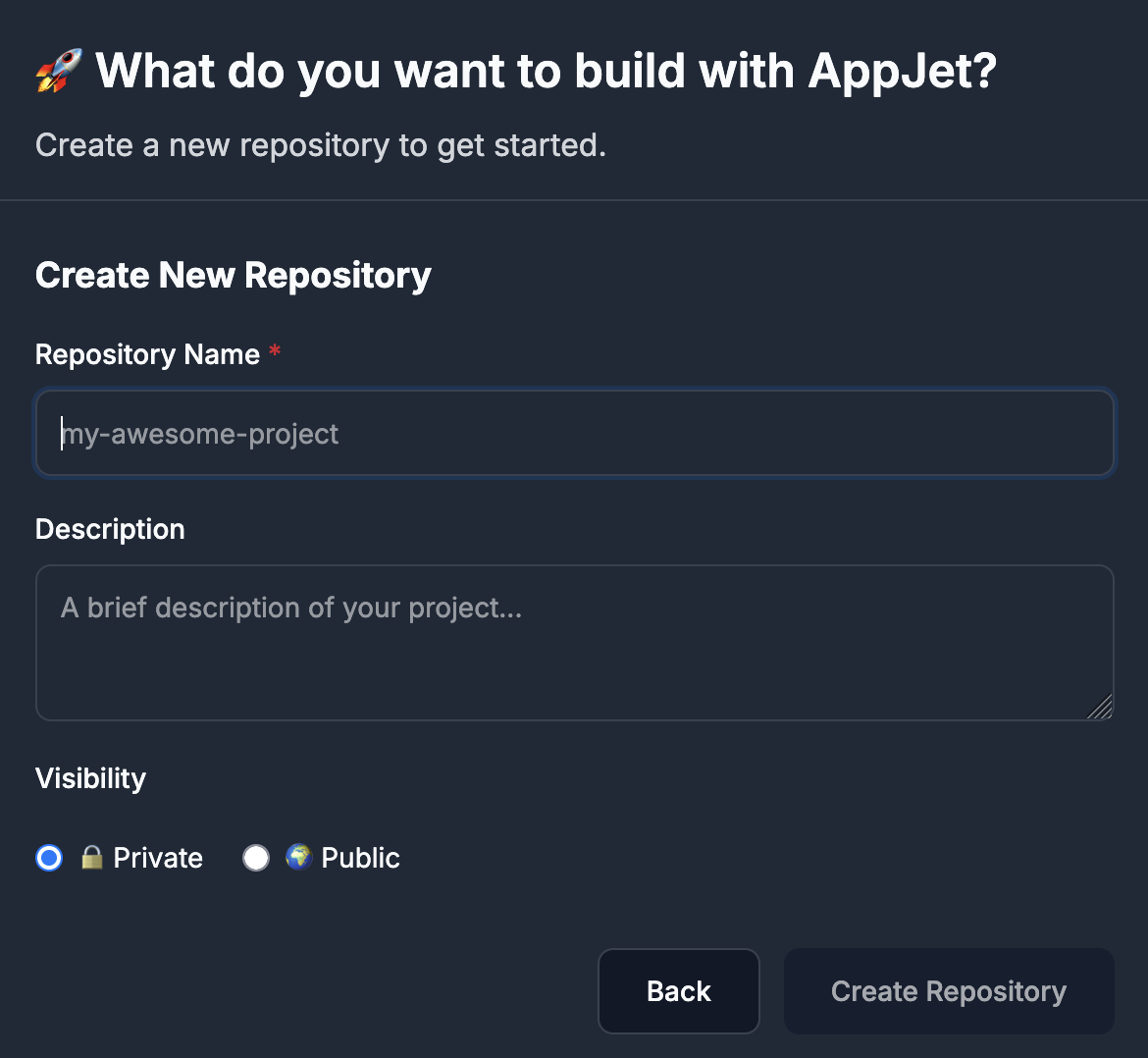
Describe the first version
Use your first prompt to explain the users, screens, main actions, and data the app needs. Include design preferences and any framework or integration constraints.
For example:
Create a CRM for startup founders. Include contacts, company profiles, deal stages, search, and a responsive dashboard. Start with sample data and verify that the app builds. Explain what needs configuring before real customer data can be stored.
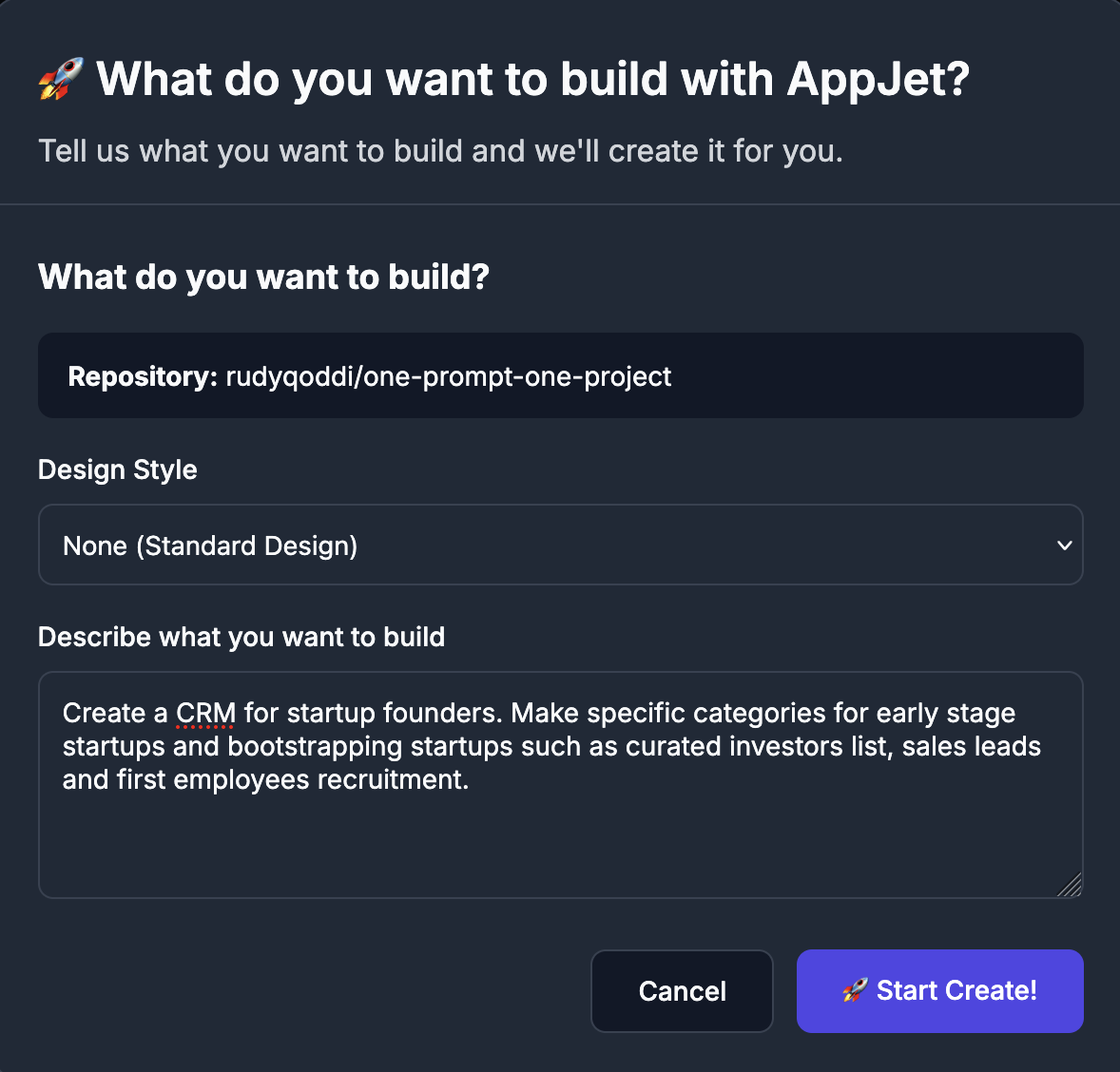
Follow and review the work
The agent creates and edits files, runs supported checks, and records progress. Inspect the task plan, activity, and verification results. A generated completion message alone does not prove that all requirements work.
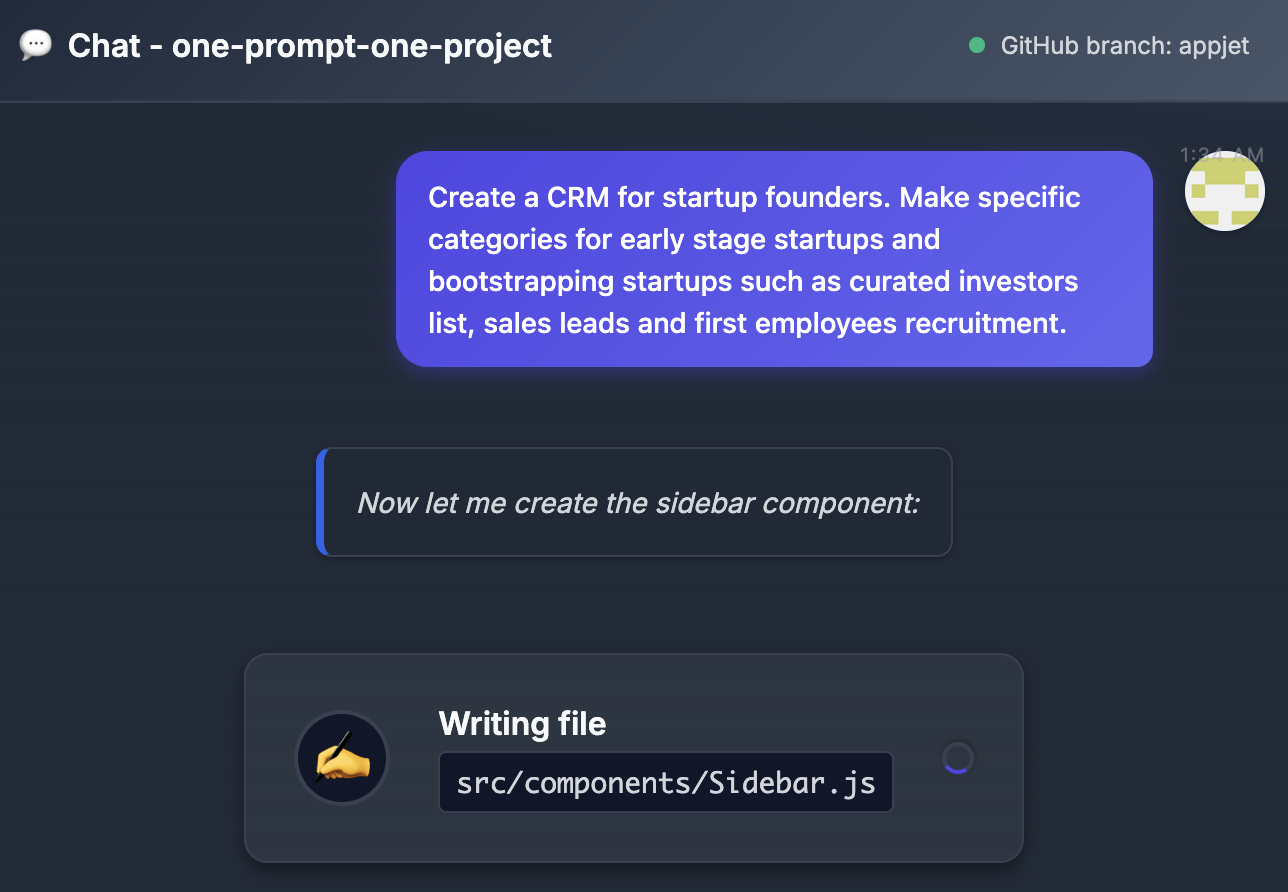
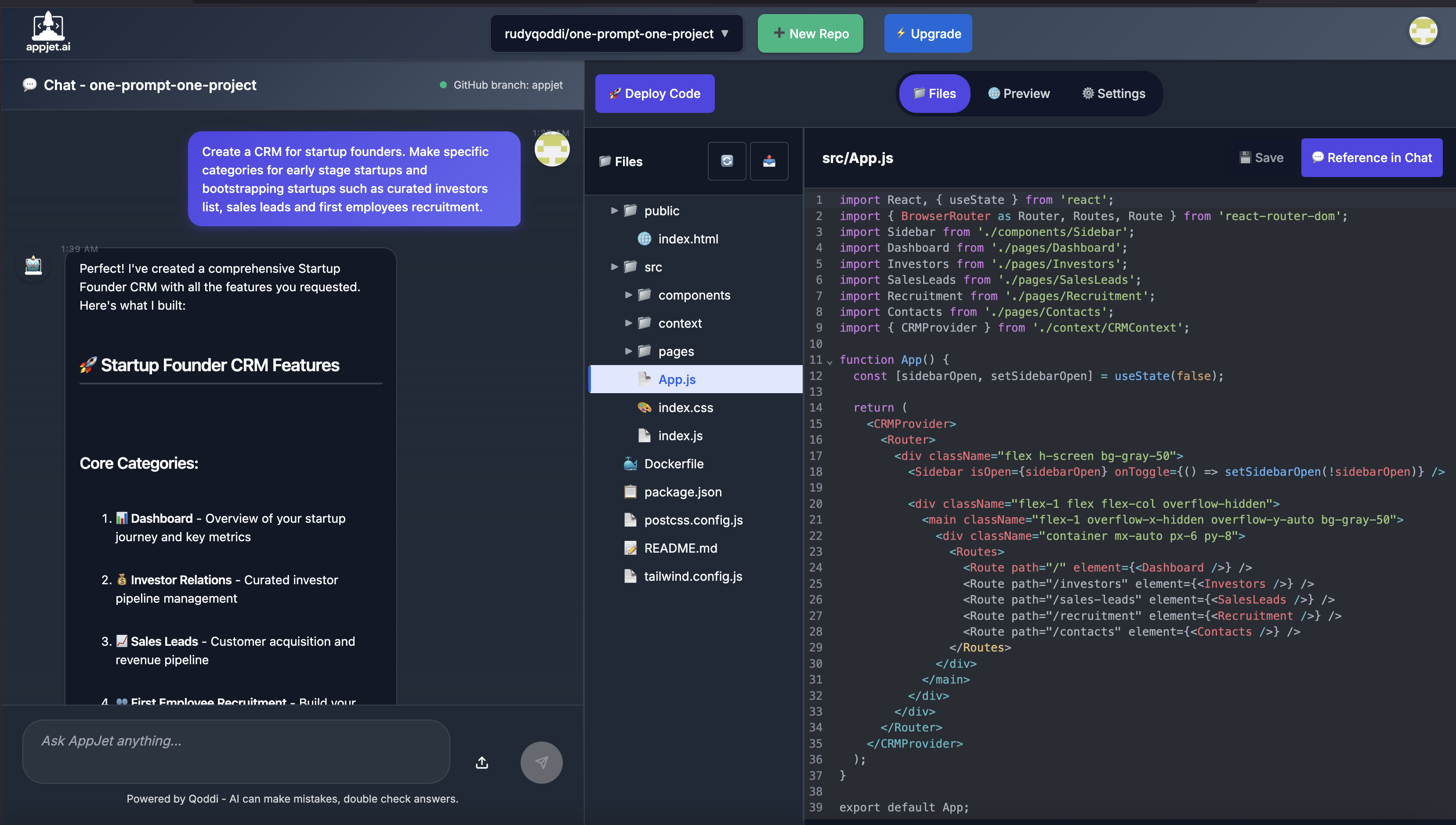
Deploy and iterate
Ask the agent to build and deploy the project. Once the build and deployment succeed, open the app from Preview or Settings → Overview.
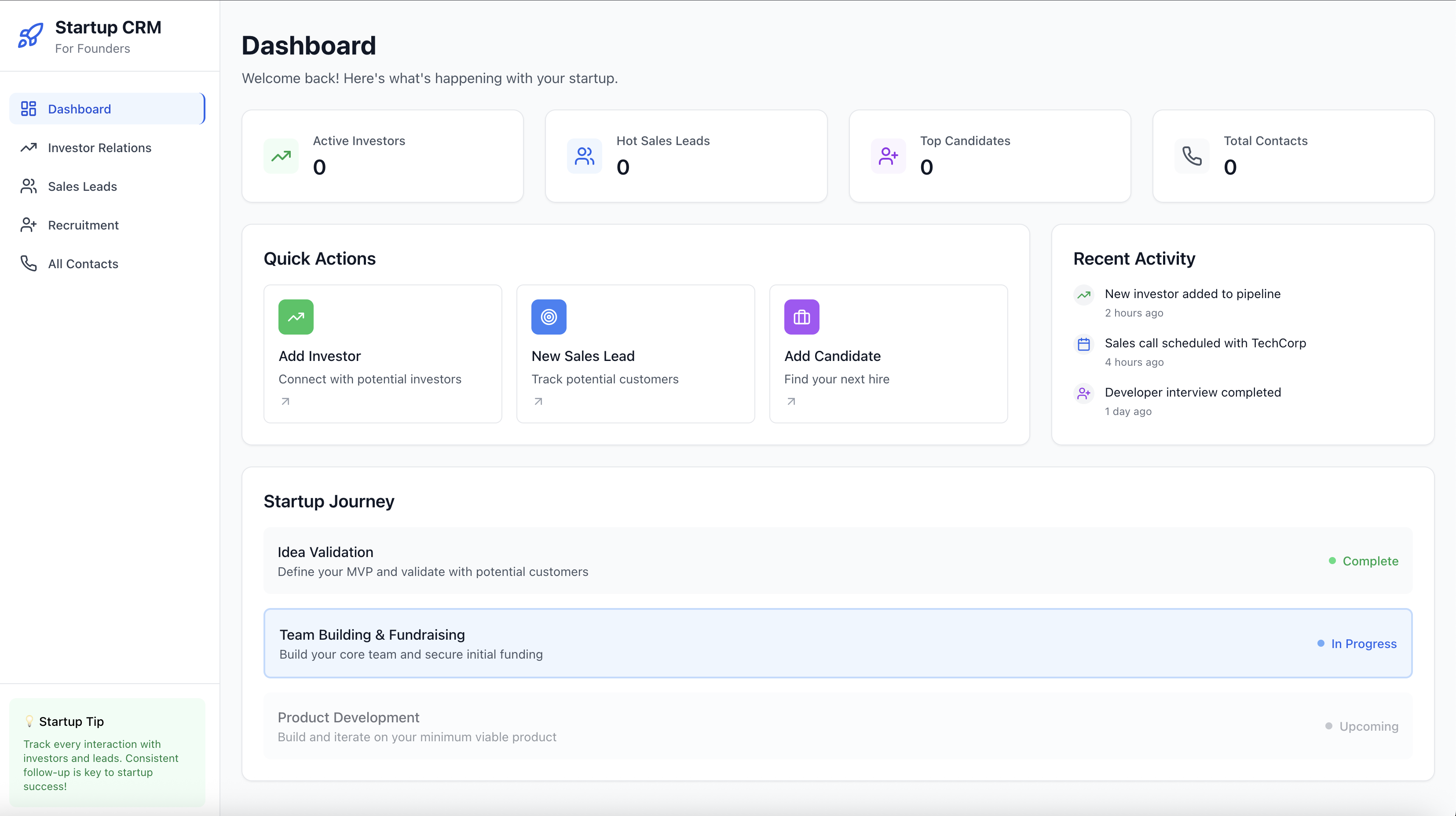
Add features in manageable steps. Connect Supabase for persistent application data, or add a virtual disk and custom domain on Starter or Pro.
These screenshots come from the original walkthrough. The current interface may look different; use the controls described in the current guides.