You've finished a feature, you run git merge, and instead of a clean success message you get Automatic merge failed. Your files now contain strange lines full of angle brackets, and Git won't let you commit until you sort it out. Nothing is broken. Git has paused because it needs a decision only a person can make.
A Git merge conflict isn't a sign that you did something wrong. It's Git asking you to confirm what the combined code should do, and that question matters more than removing the markers. A file can look clean and still behave incorrectly, so resolving a conflict always ends with checking that the program still works.
Table of Contents
- What Causes a Git Merge Conflict
- How Git Pauses a Merge and How to Resolve It
- Use a Merge Tool Instead of Raw Markers
- A Worked Example from Conflict to Clean Merge
- Conflicts During a Rebase
- Confirm the Merge Before You Push
What Causes a Git Merge Conflict
Say two people edit the same paragraph in a shared document at the same time. If one person fixes the first sentence and the other fixes the last sentence, both edits can live together. If both rewrite the same sentence in different ways, someone has to decide which wording survives, or write a third version that combines both ideas.
Git works the same way with code. When two branches change different files, or different parts of the same file, Git merges them automatically. When both branches change the same lines in different ways, Git can't know which change you intended to keep. It stops, marks the spot, and waits for you.
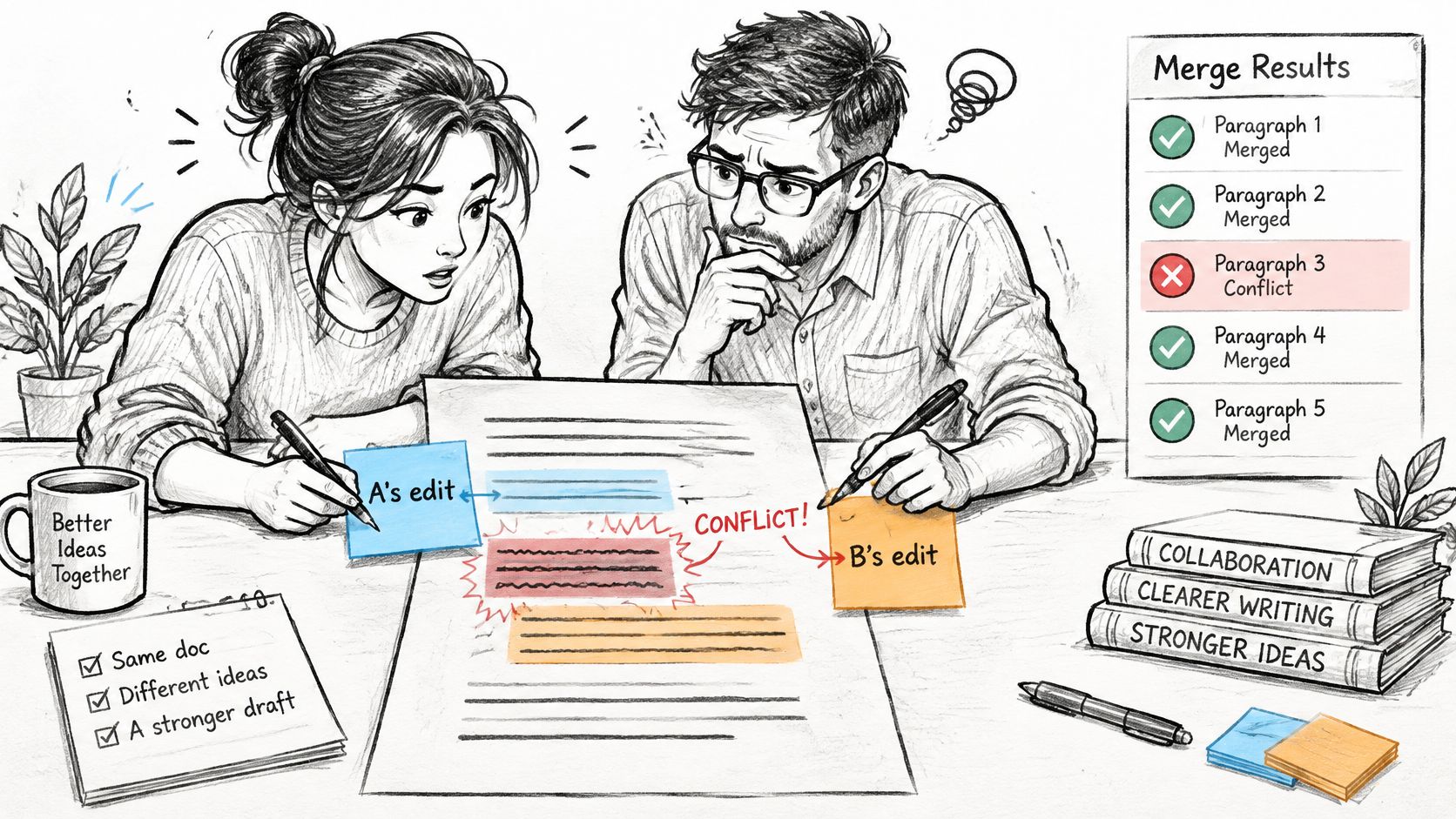
This happens often enough that you shouldn't treat it as an unusual failure. A 2020 empirical study of 143 open-source software projects found that almost 1 in 5 merges, approximately 20%, resulted in a conflict requiring developer intervention. In 75.23% of conflict cases, developers had to reason about program logic to determine the correct resolution. Picking one side at random isn't a safe shortcut.
Common Causes You Will Actually See
Most conflicts fall into a small set of patterns. The message Git prints tells you which pattern you're in, and that message is your first clue about where to look.
| Cause | Example | What Git Reports |
|---|---|---|
| Same lines edited on both branches | Both branches change the price line in app.js | Content conflict in app.js |
| One branch deletes a file the other edits | Feature branch deletes utils.js while main fixes a bug in it | Modify/delete conflict |
| Renamed on one side, edited on the other | Main renames Button.js to Btn.js while the feature edits Button.js | Rename/modify conflict |
| Same new path created on both branches | Two branches each add config.json with different content | Add/add conflict |
| Edits to neighboring lines | One branch edits line 20 and the other edits line 21 in the same function | Conflict when the hunks touch, depending on context |
The modify/delete case confuses beginners because there's no text to edit. One side says the file should not exist, the other side says it should exist with new content. You have to decide whether the deletion or the edit reflects what the project needs now, often by asking the person who deleted it.
The neighboring lines case can feel unfair because you didn't touch the exact same line. Git compares blocks of changed text with a little surrounding context. If those blocks overlap, Git can't separate them cleanly and asks you to confirm the result. Teams using collaborative coding tools for shared development still hit this, because the problem is overlapping intent, not a lack of communication.
A conflict means a human decision is needed. It doesn't mean the merge failed beyond repair, and it doesn't mean either branch is wrong.
Read Git's output before opening any file. Content conflict, modify/delete, and add/add each point to a different decision, and naming the cause correctly saves you from hunting through markers that may not even exist for structural conflicts.
How Git Pauses a Merge and How to Resolve It
To understand why Git stops, you need one picture. Every merge compares three versions of your code, not two.
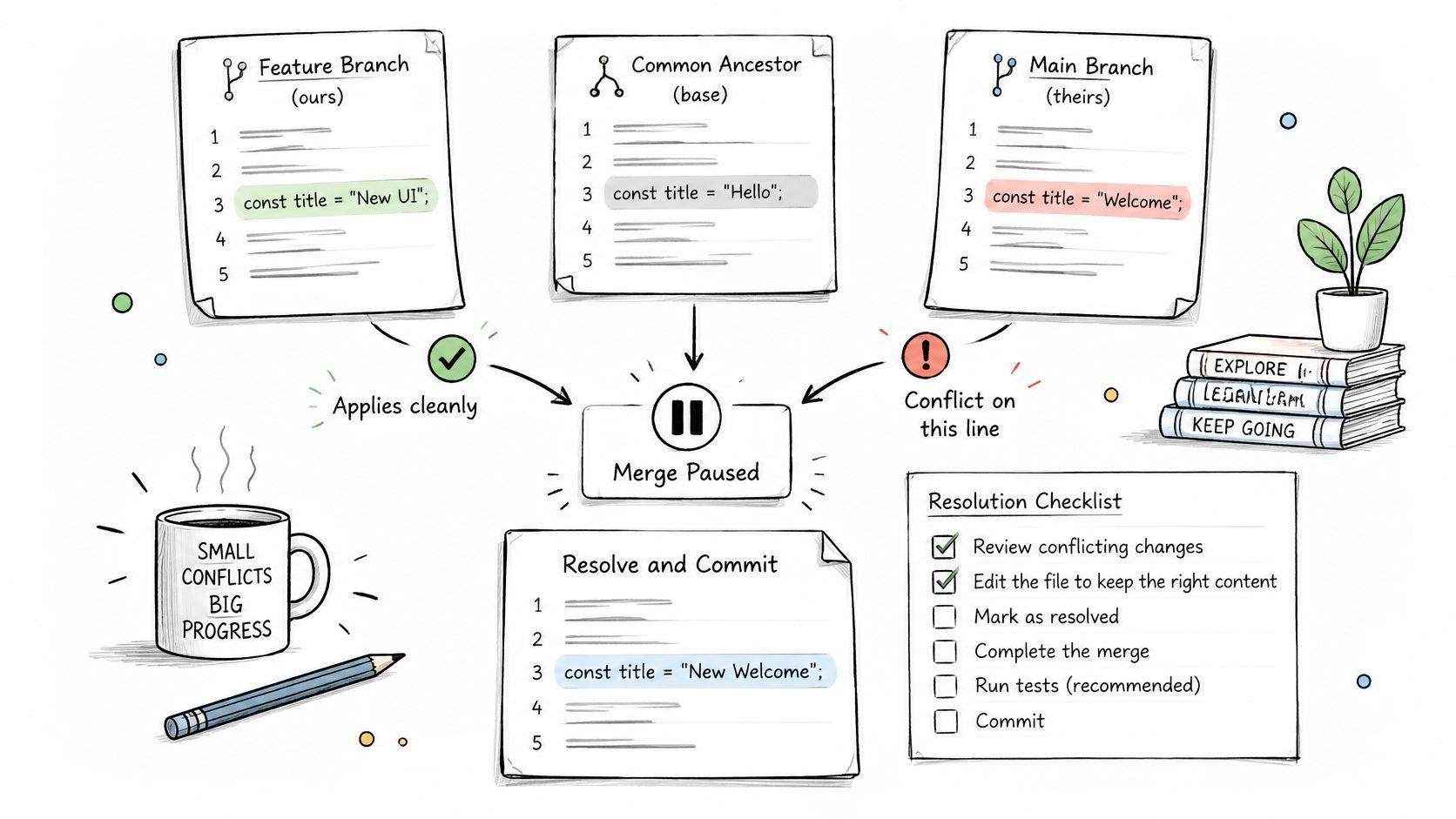
The first version is the common ancestor, the last commit both branches share. The other two are the tips of the branches you're merging. Git asks what each branch changed compared with that ancestor. If only one branch changed a region, Git takes that change. If both branches changed the same region in the same way, Git takes it once. If both changed it differently, Git has no safe answer.
What Git Does When It Cannot Decide
According to the Git merge documentation, Git's default ort strategy performs a three-way merge between the two branch tips and their common ancestor. A conflict occurs when Git cannot safely determine how concurrent edits should be combined, typically when both branches modify overlapping regions or when structural changes such as renames create ambiguity.
When that happens, Git pauses the merge instead of finishing it. It writes conflict markers into the affected files in your working tree, and it records those files as unmerged. You're now in the middle of a merge. Git won't complete it until you edit each conflicted file, stage it, and tell Git to continue.
That pause is protective, not punitive. Git would rather show you both versions side by side than discard someone's work.
Reading the Markers in Order
Open a conflicted file and you'll see blocks that look intimidating at first. Each block follows the same order every time, and once you learn that order, the file becomes readable.
| Marker | Appears As | Meaning |
|---|---|---|
| Start marker | <<<<<<< HEAD |
Your current branch's version begins |
| Base section (diff3 or zdiff3 only) | ||||||| merged common ancestor |
Original text before either side changed |
| Divider | ======= |
Separates your version from the incoming version |
| End marker | >>>>>>> feature/login |
Incoming version ends; the name shows the source branch |
HEAD means the branch you were standing on when you ran the merge. That's often called ours. The incoming branch, named after the end marker, is called theirs. Beginners often mix these up, so check which branch you merged into before you choose a side.
The base section is hidden by default, but it's the most useful part for hard conflicts. It shows what the code looked like before either branch touched it, so you can see what each person was trying to change. Turn it on once with git config --global merge.conflictStyle zdiff3 and Git will include it in future conflicts.
Practical rule: Read the base first, then compare each side against it. That tells you what each branch intended, not just what each branch wrote.
You can watch the marker layout and the pause in action in this walkthrough before trying it in your own repository.
Resolving the Conflict Step by Step
Work through every conflicted file in the same order. Don't skip the testing step just because a file looks tidy after editing.
- Run
git status: This lists every file with unmerged paths, so you know the full scope before you start. - Locate every marker: Use
git grep -n "<<<<<<<"to find each conflict block, including ones buried in long files. - Decide each region: Keep yours, keep theirs, combine both, or rewrite the logic so both intentions survive.
- Delete every marker line: The
<<<<<<<,=======, and>>>>>>>lines are not code and must not remain in the file. - Compile and test: Run the build, run the tests, and check each feature that either branch touched.
- Stage each resolved file: Run
git addon the file, which tells Git you consider that conflict resolved. - Finish the merge: Run
git commitorgit merge --continueonce every file is staged. - Abort if it goes wrong: Run
git merge --abortto return to the state before you started the merge.
Step three is where the work lives. Combining both sides often means more than keeping both blocks of text. You may need to merge two conditions into one, keep one branch's new parameter and the other's new calculation, or update a return value so it reflects both changes. If you're unsure what the other branch intended, read its commit messages or ask its author. Guessing here is how resolved conflicts turn into bugs.
Staging deserves attention because it changes how Git sees the file. Until you run git add, Git treats the file as still conflicted, even if you've edited it perfectly. After you stage it, Git treats your edited version as the agreed result for that file.
Common Slips That Cause a Second Problem
Three mistakes show up repeatedly. The first is deleting the markers before deciding the content, which leaves you with a clean looking file whose logic nobody chose. The second is staging a file that still contains markers. Git will happily commit marker lines as if they were code, so search again before you stage.
The third mistake is skipping tests because the merge completed. A syntactically clean merge can still select incompatible business logic, and tools that help you debug codes and error messages systematically are most useful right after a resolution, when you still remember what each side meant. Treat testing as part of resolving, not as an optional chore after it.
There's one shortcut worth knowing, with a clear limit. git checkout --ours keeps your branch's version of a whole file, and git checkout --theirs keeps the incoming version. Use either one only when you're certain that one side is correct for the entire file. If different regions need different answers, edit by hand.
Use a Merge Tool Instead of Raw Markers
Raw markers are plain text, and plain text is easy to misread when a conflict spans many lines. A visual merge tool lays the versions side by side so you can compare them without scrolling past marker lines.
Run git mergetool and Git opens each conflicted file in your configured tool, such as vimdiff, meld, or kdiff3. Most tools show four panes. You see the local version, the remote version, the base, and the merged result that you're building. That result pane is the only one Git keeps, so focus your checking there.
Set your preferred tool once with git config --global merge.tool followed by the tool name. If you don't want backup copies left behind, add git config --global mergetool.keepBackup false to stop Git creating .orig files after each resolution.
Resolving Inside an Editor
In VS Code or IntelliJ, the conflict view places buttons above each block. Accept Current keeps your side, Accept Incoming keeps theirs, and Accept Both keeps both blocks in order. The editor inserts the chosen lines and removes the markers for you, which removes one source of typing mistakes.
Those buttons only choose text. They don't check whether the resulting function still makes sense. After accepting a side, read the whole function from top to bottom and confirm it does what both branches intended. Accept Both is especially risky in code, because keeping both versions of a calculation usually means one of them is now dead or duplicated.
Use git checkout --ours or git checkout --theirs only for files where one side is correct everywhere, such as a generated file you'll rebuild anyway. For hand written logic, resolve region by region. When every file is done in the tool, stage the files and finish the merge the same way you would after editing markers by hand.
A Worked Example from Conflict to Clean Merge
Say your project has one small JavaScript function that calculates an order total. Two developers change it on separate branches, each for a sensible reason.
On main, a developer updates the tax rate because the rate changed. On a feature branch, another developer updates the shipping fee because the courier raised prices. Both edits sit inside the same calculateTotal function, close enough that Git can't separate them. When you merge, Git pauses and writes the file with markers, including the base section because you're using zdiff3.
The conflicted file looks like this, shortened so you can read it at a glance.
function calculateTotal(items) {
<<<<<<< HEAD
  const tax = subtotal(items) * 0.08;
  const shipping = 5;
||||||| merged common ancestor
  const tax = subtotal(items) * 0.05;
  const shipping = 5;
=======
  const tax = subtotal(items) * 0.05;
  const shipping = 8;
>>>>>>> feature/shipping
  return subtotal(items) + tax + shipping;
}
Read it in order. The base shows the original values, a tax rate of 0.05 and shipping of 5. Your branch changed only the tax rate to 0.08. The incoming branch changed only the shipping fee to 8. Neither branch intended to undo the other's change, so choosing one side entirely would lose a real update.
The correct resolution keeps both new values and removes every marker line.
function calculateTotal(items) {
  const tax = subtotal(items) * 0.08;
  const shipping = 8;
  return subtotal(items) + tax + shipping;
}
Notice that the resolved file doesn't match either side exactly. That's normal, and it's often the right answer. You stage the file with git add, run the tests for the checkout flow, and finish the merge.
A Clean Merge That Still Breaks the Program
Now consider a quieter failure. Two branches each add a helper function called formatPrice, but in different places in the same file. Because the additions don't overlap as text, Git merges them without any markers and reports success.
The program now defines formatPrice twice. Depending on how the code is structured, the second definition may override the first, and prices may format differently than either developer expected. Git did its job correctly on the text. It cannot know that two functions with the same name conflict in meaning.
Git judges whether text overlaps. Only reading the code and running tests can judge whether the behavior is correct.
That's why verification belongs inside resolution, not after it. If the tests fail here, you rename one helper or merge them into a single function that serves both callers, then test again before you commit.
Conflicts During a Rebase
A rebase works differently from a merge, so its conflicts feel different too. Instead of combining two branch tips at once, Git replays your commits one at a time onto a new base. The same underlying disagreement can therefore stop the process more than once.
When Git stops, it tells you which commit it's applying and marks the conflicted files with the same markers you already know. Your job at each stop is smaller than in a merge, because you're resolving one commit's intention, not the whole branch's.
- Edit the file: Decide the content for this commit and delete the markers.
- Stage the file: Run
git addso Git records your resolution. - Continue the rebase: Run
git rebase --continueto apply the next commit. - Skip if redundant: Run
git rebase --skipto drop this commit if its change is already present in the new base. - Abort if needed: Run
git rebase --abortto return the branch to its original state.
Read the commit message at each stop. It tells you what that single commit was meant to do, which is exactly the information you need to resolve it sensibly.
Say you're rebasing a feature branch with three commits onto main. Only the second commit conflicts, because it edited a function that main has since renamed. You move that commit's change into the renamed function, stage the file, and continue. The third commit may then apply cleanly, or it may conflict because it depended on the old name.
Test after the whole rebase finishes, not only after the first stop. A fix you make for an early commit can change what a later commit does, and only a full test run at the end shows you the combined result.
Confirm the Merge Before You Push
Before you push, run through a short checklist. It takes minutes and catches the mistakes that otherwise reach your teammates.
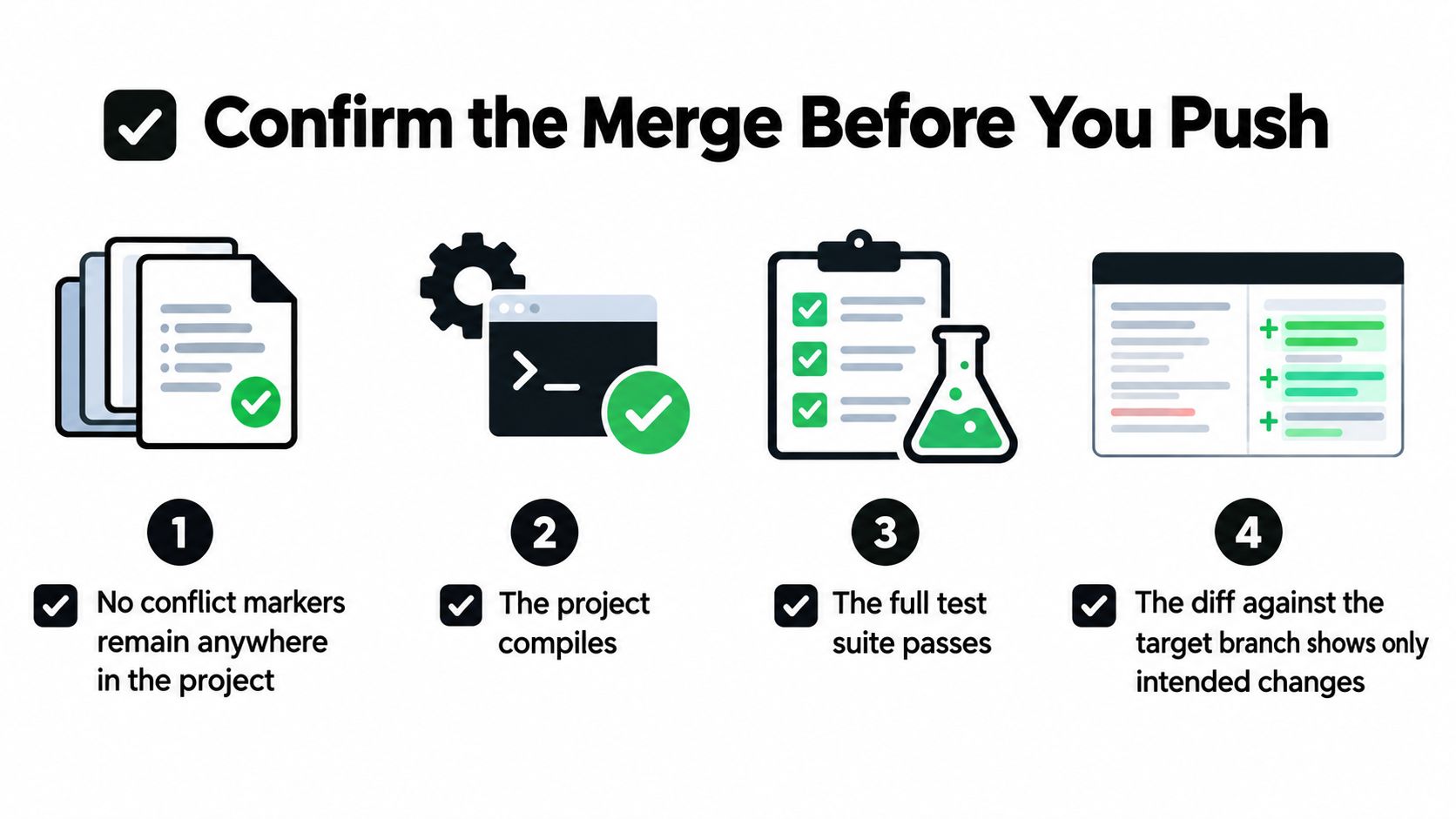
- No markers remain: Search the whole project for
<<<<<<<and confirm nothing matches. - The project compiles: Run your normal build and fix any error before going further.
- The full test suite passes: Don't run only the tests for the file you edited.
- The diff looks intended: Use
git diff HEADand read for changes nobody meant to make. - Each feature still works: Manually check the behavior that each side of the merge touched.
Conflicted code deserves this extra attention because a resolved conflict is a place where two intentions met and a person improvised the combination. Treat that code as higher risk during review, and use GitHub status checks to gate merges on passing tests so the check happens even when you're in a hurry. If you're curious about tooling that works with your existing codebase rather than around it, reading about how AI assisted coding works can help you judge where automated help ends and your own verification must begin.
Making Conflicts Rarer and Smaller
You can't eliminate conflicts, but you can shrink them. Keep branches short-lived and focused on one change. Make small commits so each one is easy to understand during a rebase. Pull or rebase from the main branch often, so differences stay small instead of accumulating for weeks.
Agree as a team on who owns shared files such as configuration files and lock files, since those attract overlapping edits. Small, frequent conflicts in files people expect to share are far easier than one giant conflict after a long branch.
If you can't confirm the merged behavior, don't push and hope. Abort the merge, and resolve it together with the author of the other branch. That conversation is part of the resolution, not a sign that you failed at it.
If merge conflicts keep slowing down work on a repository you maintain, AppJet lets you connect your existing GitHub project and keep building on it with AI assistance that understands your project's structure, components, and business logic. You can add features, debug problems, and deploy from one workspace while keeping your current code and architecture. Visit AppJet, connect a repository or start a new project, and put the verification habits from this guide to work on your next merge.